4K ready Auto loop finder · Exact preview · Social crops

Make any video loop seamlessly.

LoopForge Studio finds the perfect loop point for you, adds ping-pong and speed ramps, crops for Reels and TikTok, and exports in high quality, with sound.

Windows 10 and 11 · 14-day free trial · Works offline · Nothing else to install

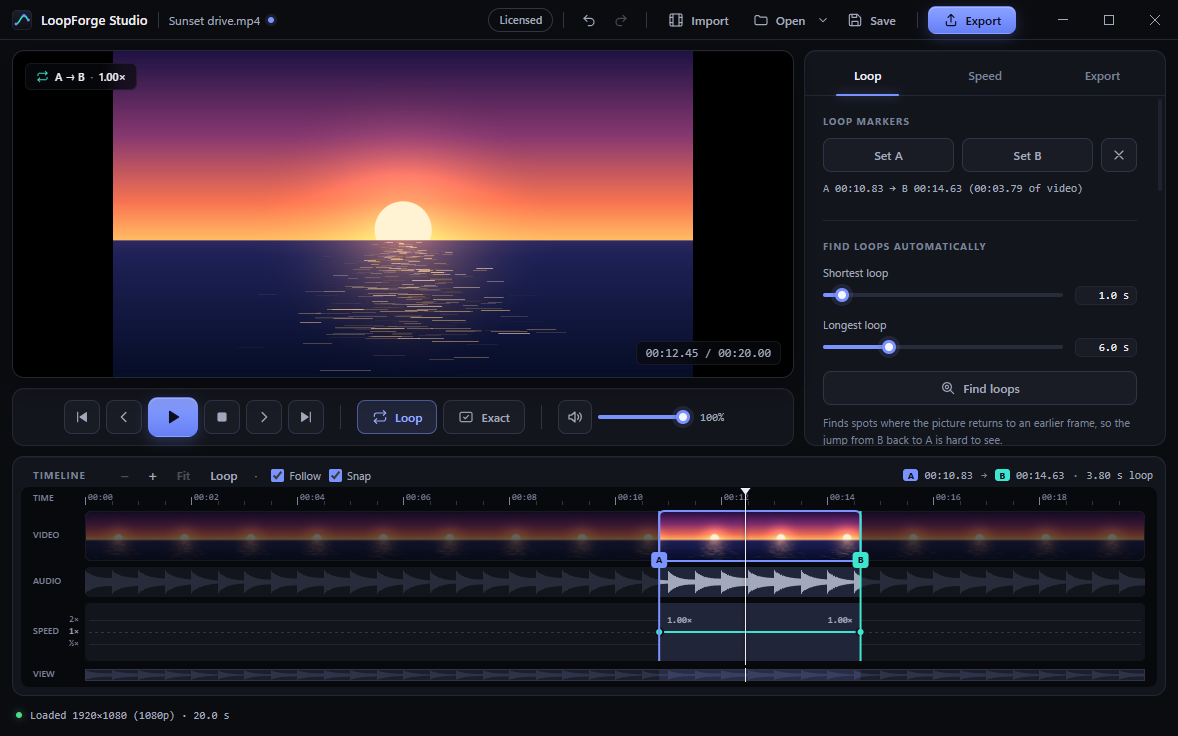
LoopForge Studio with a sunset clip loaded. The auto loop finder lists six seamless loops rated 99.8%, and the timeline, with its time ruler, shows the chosen loop over the video, audio waveform and speed lanes.
4KUltra HD in and out, with a memory check before big exports
6export formats, from MP4 to ProRes and animated WebP
GPUaccelerated encoding on NVIDIA, Intel and AMD
100%offline. Your footage never leaves your PC
Features

Everything a loop needs.
Nothing it doesn’t.

Built for creators, editors and designers who want a perfect loop in minutes, not an afternoon of nudging keyframes.

Auto loop finder

It finds the seam you can’t see.

LoopForge compares frames across your clip and shows you the spots where the picture returns to where it started. Click one and A and B are set.

  • Rated for you: Seamless, Good or Visible jump, with a match score
  • Choose the length: look for loops from half a second to 20 seconds
  • Fast: scans a clip in a few seconds. On long videos it searches 3 minutes around the playhead
Match score by loop length A chart of how closely the end of a loop matches its start, for loop lengths from one to six seconds. Scores peak at 3 seconds and 6 seconds, both rated seamless. 100 90 80 70 1 s2 s3 s 4 s5 s6 s SEAMLESS ZONE 00:02.00 → 00:05.00 Seamless · 99.8% Loop length Match score (%)
How closely the end of each possible loop matches its startPeaks = loop points
Ping-pong & speed ramps

Boomerangs and ramps that move like the real thing.

Play forward and back, or let speed build and fall along the loop. Draw your own ramp or pick a preset, and the return trip mirrors it frame for frame.

  • True variable speed from 0.25× to 4×, not a single average speed
  • Sound follows the picture: it speeds up, slows down and plays backwards with the video
  • Keep the pitch natural, or let it rise and fall like a record
  • Frame-accurate points: drag them on the timeline, where a point moves in time or in speed, never both by accident, or type an exact time and speed, or nudge with the arrow keys
A speed ramp across a ping-pong loop On the way out from A to B the speed builds from 0.4 times to 1.6 times. On the way back from B to A it mirrors exactly, fast at B and slowing towards A. The audio waveform follows the same timing. A → B forward B → A mirrored 4×1×¼× 0.4×1.6×0.4× Sound stays in sync and reverses on the return
“Slow build” preset in ping-pong modeSpeed on a log scale
Exact preview

What you see is exactly what you export.

Holds, crossfades, repeats and ramps are hard to judge in a normal preview. Switch on Exact and LoopForge plays a quick render of the export itself, updated a moment after every change.

  • Crossfades that hide the seam, picture and sound together
  • Freeze holds on the first and last frame
  • Repeat it a set number of times, or fill an exact duration
What goes into the exported file The live preview shows only the loop repeating. The exported file contains a 1 second hold, three repeats of the loop joined by half-second crossfades, and a 1 second hold at the end, 10 seconds in total. Exact preview plays that file. LIVE PREVIEW looplooploop EXACT PREVIEW = THE EXPORT hold repeat 1repeat 2repeat 3 hold crossfadecrossfade 0 s10.0 s
1 s holds · 3 repeats · 0.5 s crossfadesOutput: exactly 10.0 s
Made for social

Vertical, square or wide, in one click.

Pick a shape and drag the frame where you want it. LoopForge crops in full quality and sizes the output the way each platform expects.

  • 9:16 for Reels, TikTok and Shorts · 1:1 square · 4:5 portrait · 16:9 wide
  • Quick lengths: 6, 10, 15, 30 or 60 seconds, filled to the exact frame
  • Smart resolution: 1080 sets the shorter side, so a vertical crop of a 4K clip is 1080×1920. Never upscaled
Crop shapes and their output sizes From a 4K source at the 1080 setting: 9:16 vertical exports at 1080 by 1920, 1:1 square at 1080 by 1080, 4:5 portrait at 1080 by 1350, and 16:9 wide at 1920 by 1080. 9:16 1080×1920 Reels · TikTok 4:5 1080×1350 Feed posts 1:1 1080×1080 Square 16:9 1920×1080 YouTube
Output sizes at the 1080 setting, from a 4K clipSmaller clips keep their own pixels
Inside the app

A studio that stays out of your way.

Three tabs, one zoomable timeline, and a preview you can trust. These are real screenshots.

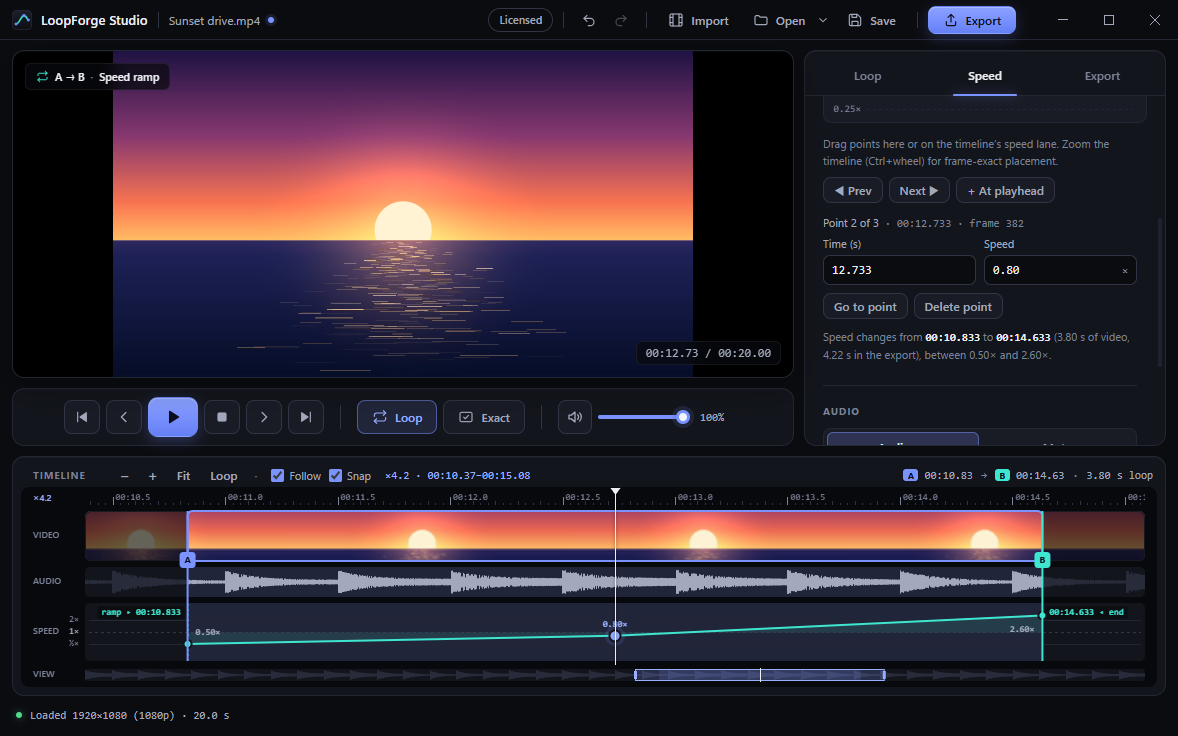
Draw a ramp. Drag points on the ramp editor, or right on the timeline’s speed lane, and the other updates as you go. The lane labels exactly where the ramp starts and stops. Presets like Slow build, Whip in and Ease out get you started.

The Speed tab with a custom speed ramp rising from 0.5 times to 2.6 times. The same ramp appears in the speed lane of the timeline, zoomed to the loop, with labels showing the exact times where the ramp starts and ends.

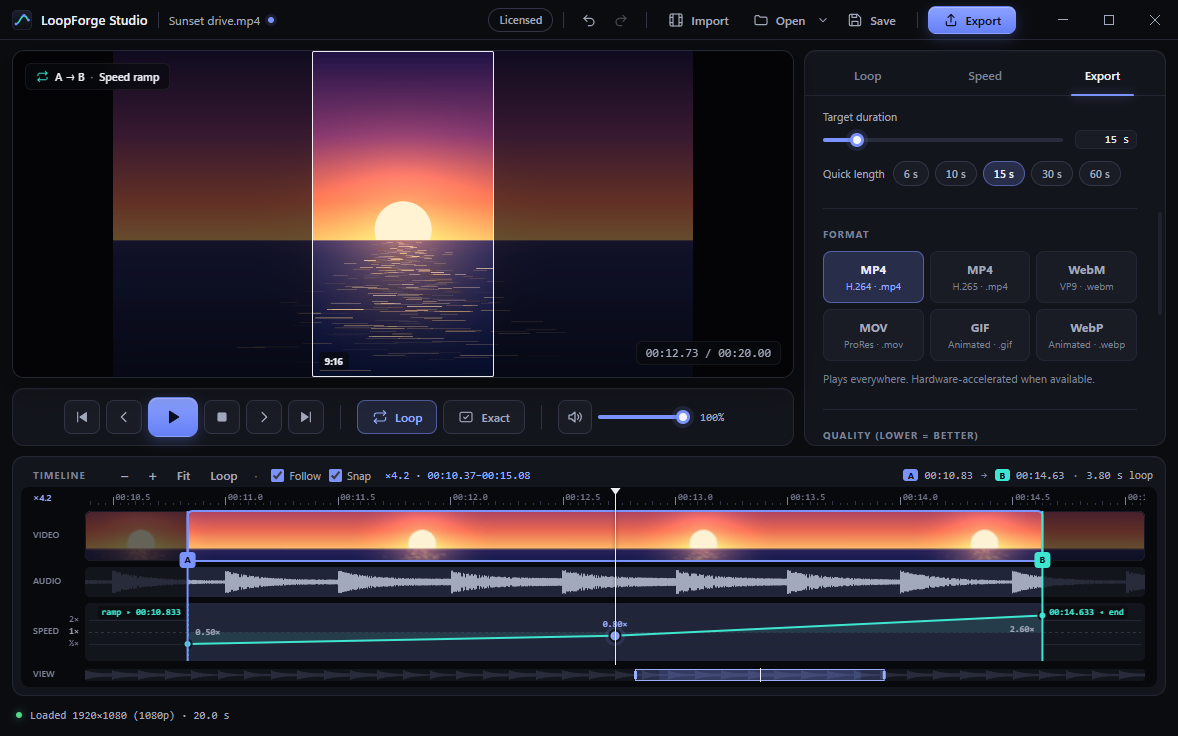
Pick a shape, drag the frame. The Export tab crops to 9:16, 1:1, 4:5 or 16:9. Move the frame on the preview, scroll to resize, and choose a quick length from 6 to 60 seconds.

The Export tab with the 9:16 vertical frame selected. A crop frame is drawn over the preview, and quick-length buttons from 6 to 60 seconds are shown with 15 seconds chosen.

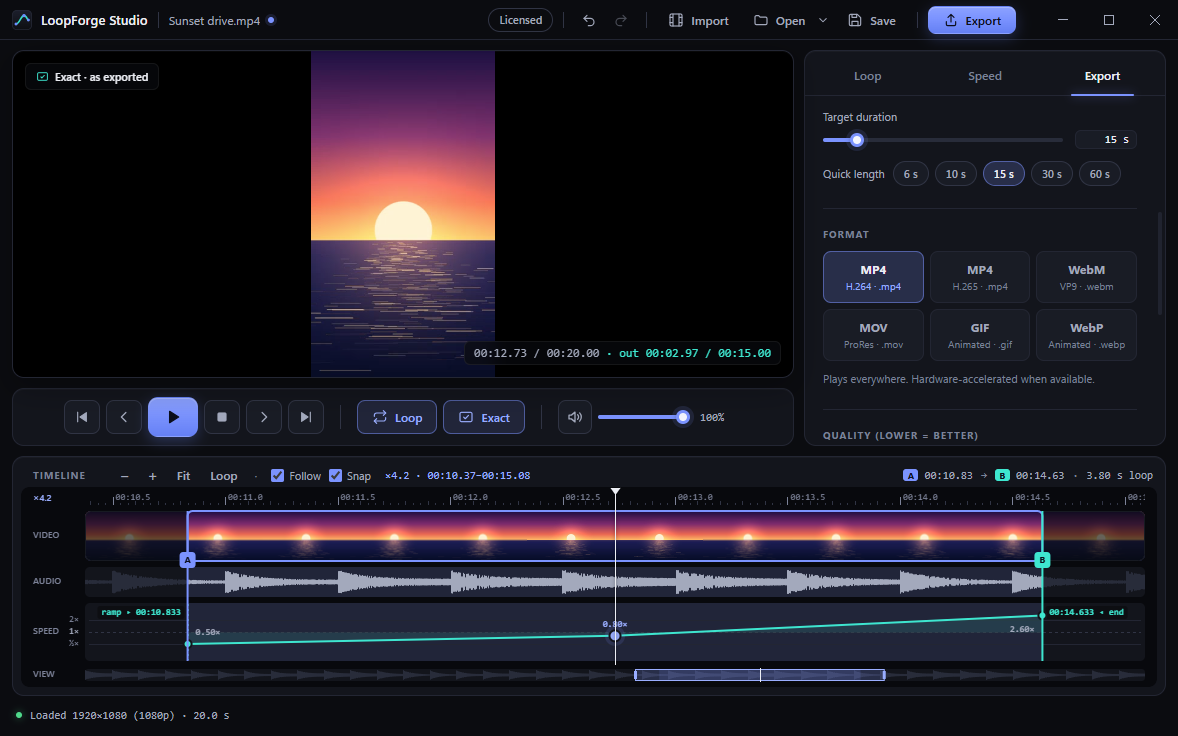
Check it before you export. Exact preview plays the finished vertical clip, and the timecode shows your position in the exported file.

Exact preview playing the vertical 9:16 export. The badge reads Exact, as exported, and the timecode shows the position in the 15 second output.

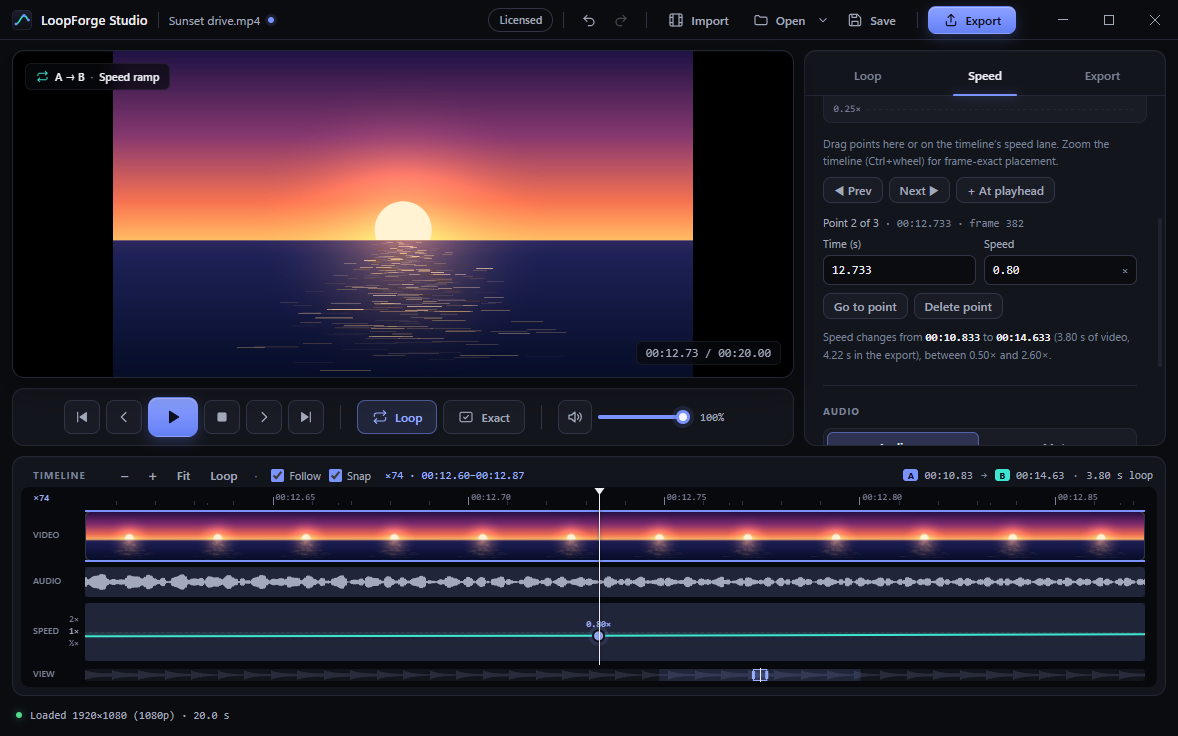
Zoom in to the frame. Ctrl+wheel zooms at the pointer, the overview bar pans, and the ruler counts down to single frames. Markers and ramp points snap to whole frames, or move freely when you turn Snap off, and you can type an exact time and speed.

The timeline zoomed in 18 times around a speed ramp point at 12.733 seconds, with a ruler in tenths of a second, sharp thumbnails and a detailed audio waveform. The Speed tab shows that point's exact time and speed, and the overview bar shows where this window sits in the clip.
Pro workflow

The details professionals expect.

Zoomable, frame-accurate timeline

Zoom from the whole clip down to single frames. Video, audio and speed lanes stay in step, with a time ruler and a waveform that sharpens as you zoom, so you can place a loop on a beat or between words, not just by eye.

Zoom CtrlWheelFit all \Zoom to loop Z

GPU-accelerated export

Uses NVIDIA NVENC, Intel Quick Sync or AMD AMF when your PC has them, after checking they really work. If the graphics card can’t handle a frame size, such as 4K or 8K, it switches to software encoding by itself.

Undo everything

Every setting, marker and crop. A drag counts as one step.

Undo CtrlZRedo CtrlY

Crash recovery

Unsaved work is saved in the background and offered back if anything goes wrong.

Projects & recent files

Save a loop as a project and pick up where you left off from the recent list.

How it works

From clip to loop in three steps.

Import

Open an MP4, MOV, MKV, WebM, AVI or GIF, or just drop it on the window. Phone videos, screen recordings and camera footage all work.

Find the loop

Let the loop finder pick it, or set A and B yourself with I and O, then zoom in to fine-tune. Add ping-pong, a ramp or a crop.

Export

Choose a format and length, check it with Exact preview, then export. Sound comes along wherever the format allows.

Export formats

One loop. Every format.

From universal MP4 to editing-grade ProRes and animated WebP, at sizes from 480p up to 4K. The file name decides the format, so loop.gif just works.

MP4H.264with sound
MP4H.265 / HEVCwith sound
WebMVP9with sound
MOVProRes 422 HQwith sound
GIFPer-frame paletteloops forever
WebPAnimatedloops forever
Pricing

One license. Yours to keep.

No subscription and no account. Try every feature free for 14 days; trial exports carry a small watermark, and a license removes it for good.

LoopForge Studio
$29one-time · per user
  • Every feature: loop finder, Exact preview, ramps, social crops
  • All six export formats: MP4 (H.264, H.265), WebM, MOV, GIF and WebP
  • Nothing else to install: the video engine is built in
  • Runs offline on your PC. No account needed
  • Your license key appears right after you pay, and is emailed to you
Buy · coming soon Download free trial

Version 1.0 · 64-bit installer, about 170 MB · Purchase opens soon; the free trial has every feature

SHA-256 of the installer: 63d3ab66b9bb2fc86cc0e93f118a84da8f30329962c33b1f5734e510833cb081

System requirements

Windows
Windows 10 or 11, 64-bit
Disk space
About 600 MB
Memory
8 GB or more. 16 GB or more is best for long 4K loops
Graphics
Any. NVIDIA, Intel or AMD GPUs speed up MP4 export
Opens
MP4, MOV, MKV, WebM, AVI, M4V, GIF and most other video files, including 4K
Exports
MP4 (H.264, H.265), WebM (VP9), MOV (ProRes), GIF, WebP
Internet
Not required
FAQ

Questions, answered.

Does it work with 4K video?

Yes. LoopForge opens, previews and exports 4K at the video’s own size, and the Resolution setting offers 1440p, 1080p, 720p and 480p for smaller files. It never upscales. Big exports use a lot of memory: a long 4K loop repeated many times at full size can need more than the PC has free. LoopForge checks before it starts, and if it won’t fit it offers a lower resolution in one click. If a file can’t be played by the built-in viewer on your PC, it builds a lighter copy to preview, and still exports from the original.

Do I need to install anything else?

No. LoopForge Studio is self-contained. Everything it needs is installed with it, so it works straight away with nothing else to download or set up.

Can I make precise edits on a long video?

Yes. Zoom the timeline with Ctrl+wheel (or the + and − buttons) until only a few frames fill the screen, and pan with the wheel or the overview bar. Loop markers, the playhead and speed ramp points snap to whole frames by default, and the thumbnails and audio waveform are redrawn in finer detail for the part you’re looking at. Hold Alt while dragging for a free move, or untick Snap to turn snapping off completely. Ramp points lock to time or to speed as you drag, so tuning one never shifts the other (hold Shift to move both), and the arrow keys nudge a selected point a frame or a speed step at a time.

Can I turn the preview down? Does that change my export?

Yes. The speaker and slider next to the playback buttons set how loud the preview plays, and M mutes it. That only changes what you hear while you edit, in every preview mode, and LoopForge remembers your level. It never changes the sound of the exported file. To export without sound, use Mute on the Speed tab.

Does the exported video keep its sound?

Yes. The sound follows the picture: it speeds up and slows down with ramps, plays backwards on ping-pong, crossfades with the video and goes quiet during freeze holds. Only GIF and WebP export silently, because those formats can’t hold audio.

How does the auto loop finder work?

It compares frames across the clip and looks for spots where the picture comes back to where it started. Each suggestion gets a match score, rated Seamless, Good or Visible jump. Click one and A and B are set for you.

Is the preview really the same as the export?

Turn on Exact and it is: LoopForge plays a fast, preview-quality render of the export itself, with holds, crossfades, repeats and ramps, and updates it a moment after each change. The regular live preview stays instant for scrubbing and setting markers.

Does my video get uploaded anywhere?

No. Everything happens on your own PC, and LoopForge doesn’t need an internet connection.

How does the free trial and licensing work?

Install LoopForge Studio and use every feature free for 14 days. Videos you export during the trial carry a small “Made with LoopForge Studio” mark in the corner, and your license removes it. When you buy, your license key is shown on the page straight after payment and emailed to you. Open the Activate window from the title bar, paste the key and you’re done. After the trial ends without a license you can still open and edit videos, but exporting needs a license.

Can I get a refund?

Yes. If you ask within 7 days of buying, you get the full price back. See the refund policy. Try the free 14-day trial first: it has every feature.

Does activating need an internet connection?

No. Your key is checked on your own PC, so activating works offline, and LoopForge keeps working without internet. When the PC happens to be online, the app quietly downloads a short list of withdrawn licenses (for example after refunds); nothing about you is sent. You only need internet to buy and to download.

Can I move my license to a new PC?

Yes. A license is for one user. On the old PC open the Activate window and choose Remove from this PC, then enter the same key on the new one. If you lose your key, contact support and we’ll resend it.

Windows says “Windows protected your PC”. What do I do?

That notice appears for installers from a publisher Windows doesn’t know yet. The LoopForge Studio installer isn’t code-signed yet, so you may see it the first time. Choose More info, check that the file is LoopForge-Studio-Setup, then choose Run anyway.

Is there a Mac version?

LoopForge Studio is available for Windows 10 and 11.

Your next loop is one click away.

Import a clip, let LoopForge find the seam, and export it ready to post.